Many users encounter operational errors when uploading audio files and processing speaker differentiation in Meetingminutes. Common issues include failed file import, unrecognized multi-speaker voices, and unlabeled speaker sequences in transcribed texts. This article delivers step-by-step operational procedures for recording upload and speaker identification functions, with standardized parameter descriptions and scene-based functional explanations for accurate reference.
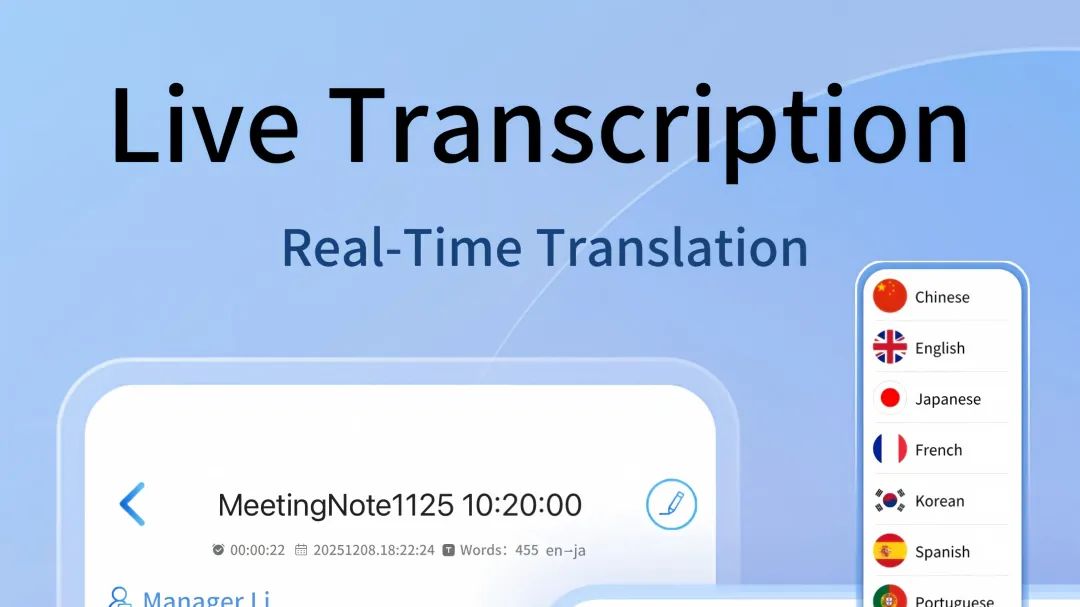
Supported File Formats for Recording Upload
Meetingminutes covers full-channel audio and video import access, with fixed compatible file types for local uploads. No third-party format conversion tools are required before file import.
The platform also supports audio extraction from 17 mainstream short video platforms. Valid network links can be directly parsed and imported into the system for subsequent transcription and speaker identification processing.
Step-by-Step Recording Upload Operation
All upload operations are completed on the Meetingminutes main interface with concise and fixed operation paths.
Open the Meetingminutes application and locate the import entry on the main page. Select local audio or video files from the device folder, or paste valid short video links in the designated input box. Confirm file selection to trigger automatic file parsing and cloud upload. The system completes file backup via dual local and cloud storage modes during upload.
Upload progress is displayed in real time on the interface. File parsing time varies based on file size and network status. Long-duration recording files undergo automatic chapter division after upload completion, splitting full-length content into structured segments for subsequent targeted processing.
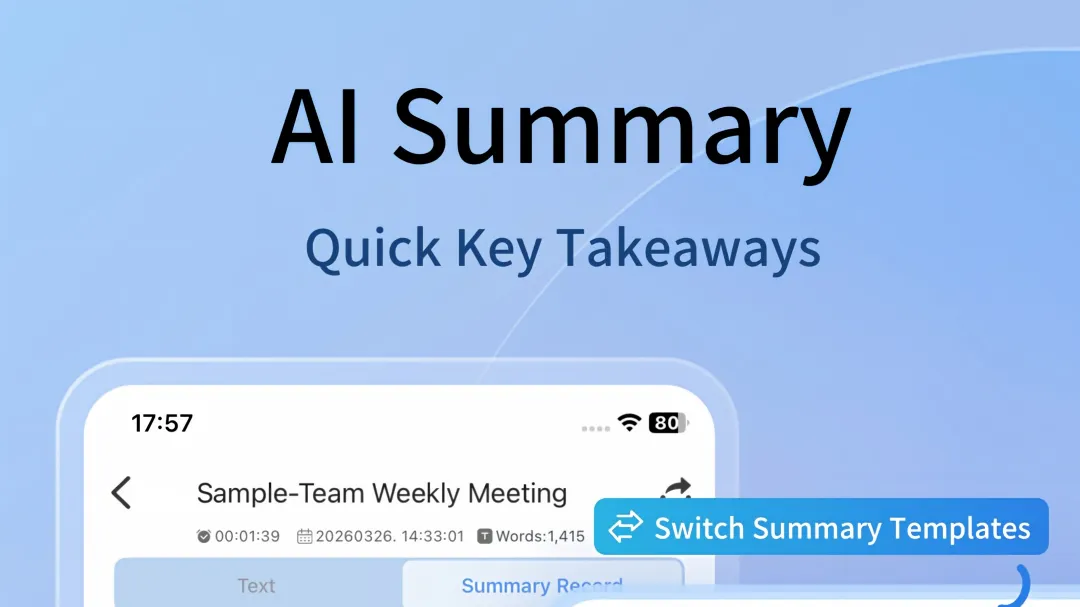
AI Speaker Identification Configuration & Execution
The speaker identification function relies on AI voiceprint recognition technology, designed for multi-person dialogue scenarios such as meetings and interviews. It automatically marks independent speaker serial numbers for differentiated content display.
After the recording file is fully uploaded and parsed, enable the speaker recognition switch in the transcription settings panel. The system independently collects and matches voiceprint features in the audio. It supports effective differentiation of multiple independent speakers in a single session.
In mixed-scene environments with indoor conference noise and multi-dialect mixing, the voiceprint recognition accuracy reaches approximately 86%. The standard Mandarin scenario delivers a transcription accuracy rate of 98%. The system automatically filters redundant modal particles and intermittent background noise to form clean text content.
Once recognition is finished, all dialogue content is annotated with corresponding speaker numbers. Users can filter and view single or multiple speakers’ dialogue content separately on the result page for targeted content sorting.

Transcript Preview and File Export
All processed transcription content retains complete speaker identification labels. The platform supports multiple export modes and fully editable text content.
Users can preview real-time transcribed text with speaker tags on the terminal. The edited content can be exported in multiple common formats. Long audio files with chapter segmentation retain independent speaker identification marks for each segment after export.
Offline archived files and cloud synchronized data both preserve complete speaker recognition results. Cross-device login enables full synchronization of all historical transcription and speaker identification data without content loss or label disorder.
Applicable Functional Scenarios
The recording upload and speaker identification functions adapt to long-duration conferences, offline field interviews, academic lectures and multi-person discussion scenarios. The ultra-long recording storage mechanism ensures zero stutter and zero file loss for full-day session recordings.
The system supports recognition of more than 20 Chinese dialects and 52 global languages with native accent adaptation. Multi-language transcription content retains complete speaker identification tags to meet international office and cross-lingual dialogue recording demands.
Key content marking and real-time note-taking functions run synchronously during recording and upload processes. All marked key segments and memo content correspond to accurate speaker identification information and audio timeline positions.
Responses
Join the conversation
Sign in to share your thoughts and interact with the author.
Sign In to Comment