Live lecture transcription is useful when the speaker is several rows away, the room has uneven acoustics, or notes need to be reviewed without replaying an entire recording. The basic workflow is straightforward: start recording before the lecture begins, keep the phone positioned toward the speaker, monitor the live transcript, mark important sections, then export the completed text after the session.
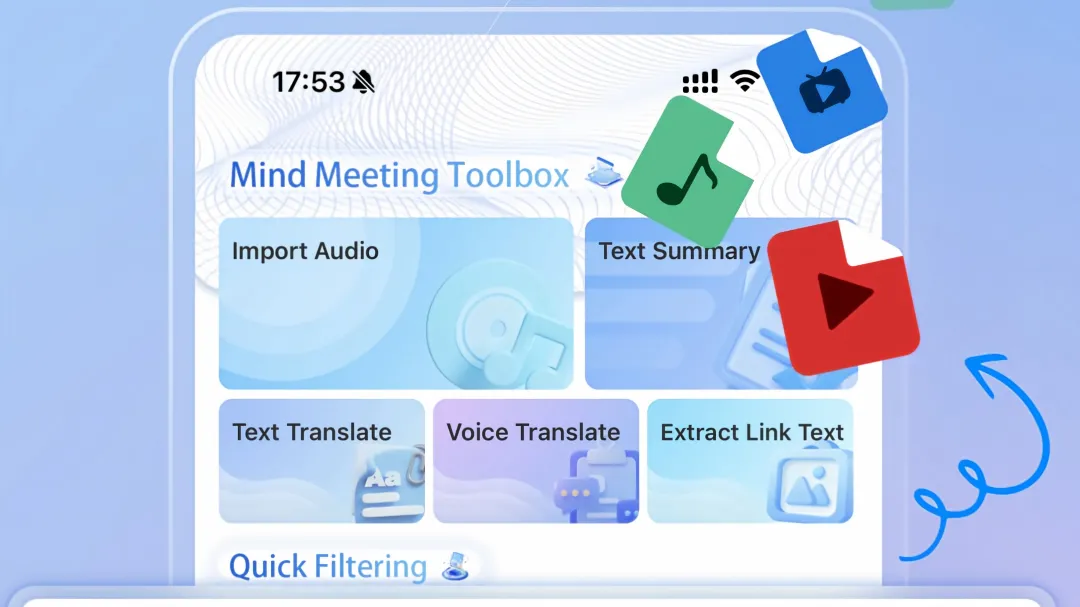
Using Meetingminutes APP as an example, the process can be handled directly from a phone.
Start Live Transcription Before the Lecture
Open the recording interface and start the live transcription before the instructor begins speaking. A few seconds of room sound at the beginning can help preserve the actual start of the session.
For a classroom or medium-sized lecture room, placement matters more than simply increasing recording volume. A phone placed on a desk with a clear path toward the speaker can reduce obstruction from notebooks, laptops, and nearby conversations.
The live transcript appears as speech is detected. The text can be checked during the lecture without stopping the audio capture.
Keep the Speaker Within a Usable Audio Range
Distance affects transcription more than the room size itself.
For standard Mandarin, the stated transcription accuracy can reach 98 percent in supported conditions. Real-world results can vary with microphone distance, room acoustics, overlapping speech, accents, and technical vocabulary.
Handle Multiple Speakers
When several people participate in a discussion, speaker recognition can automatically separate individual voices and label them with speaker numbers.
This is useful during guest lectures, classroom discussions, research presentations, and question-and-answer sessions. A transcript can then be reviewed by speaker instead of reading one continuous block of text.
If students speak over each other, however, speaker separation may become less consistent. Pausing between speakers creates cleaner audio segments.
Mark Important Moments While Recording
Lecture transcription does not have to replace handwritten notes.
During recording, important moments can be marked directly. A marker can later point back to the corresponding section of the audio and transcript.
For a long lecture, keywords can also be used to locate specific topics instead of moving through the entire recording manually.
Audio playback speed can be adjusted during review. Faster playback can be used for familiar sections, while slower playback can help with dense explanations or unfamiliar terminology.
Capture Slides and Written Material
Audio alone cannot preserve everything shown in a lecture.
When a professor writes an equation, displays a diagram, or presents a physical handout, the camera can capture the material while the recording continues. The image can remain associated with the relevant audio time.
This creates a more complete record for lectures where visual information carries part of the meaning.
Responses
Join the conversation
Sign in to share your thoughts and interact with the author.
Sign In to Comment