One-tap recording sounds simple, but the real issue is what happens after the first tap. A useful recording workflow needs to keep capturing audio while the phone is being used for other tasks, whether that means checking a work message, attending an online class, or switching between office apps.
Using Meetingminutes APP as an example, the recording process is built around a minimal interface. Open the APP, tap the recording button, and recording starts without requiring several setup steps. Once recording is active, other foreground tasks can continue while the audio process remains active in the background.
How to start a recording
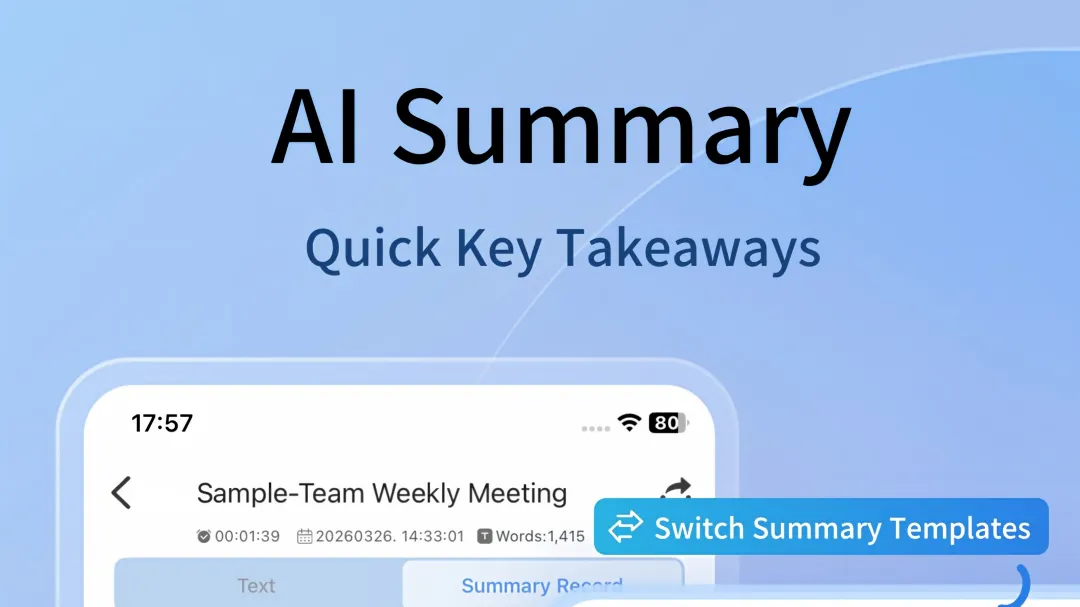
Open Meetingminutes APP and enter the recording interface.
Tap the record button once. The recording status should appear immediately on screen. There is no need to configure a transcription task before recording begins.
For a meeting, lecture, interview, or class, the phone can remain in normal use after recording starts. The recording process is designed to continue while other mobile applications are being used.
This workflow matters when a key sentence occurs unexpectedly. Repeatedly opening an app, confirming a new recording, or switching between screens can create gaps in the audio timeline. A one-tap process reduces the number of actions required before capture begins.
How real-time transcription works
When real-time transcription is enabled, spoken content is processed into text during recording.
For standard Mandarin scenarios, Meetingminutes APP lists a transcription accuracy figure of up to 98 percent. The system also supports speaker identification and can label different speakers with speaker numbers during a multi-person conversation.
For environments involving dialects, the supported range includes more than 20 dialect types, including Cantonese, Sichuan dialect, Shaanxi dialect, Henan dialect, Shanghai dialect, Hunan dialect, Hubei dialect, and Anhui dialect.
A practical workflow is to start recording first and review the generated text after the conversation has progressed. This avoids interrupting the recording simply to check whether every sentence has appeared on screen.
How to import an existing recording
Existing audio or video files can be added through the import function.
Open the import interface, select the local media file, and start the transcription process. Meetingminutes APP supports nine major audio formats and 13 video formats according to its listed functions.
For a long recording, the system can also divide the content into chapters based on the recorded material. This makes it possible to move directly to a relevant section instead of repeatedly dragging through the entire timeline.
Phone screen recordings can also be converted into searchable text, which is applicable to online classes, recorded meetings, training sessions, and other screen-based material.
How to locate a specific sentence
Long recordings become difficult to review when the only navigation method is the audio timeline.
Meetingminutes APP provides keyword search across recording-related content. Important moments can also be marked during recording. A later search can then connect the keyword or marker with the corresponding section of the audio.
Speaker filtering provides another way to review a multi-person conversation. A user can display one speaker's transcript or compare several speakers without reading the entire transcript sequentially.
Audio playback speed can also be adjusted. Faster playback can be used for routine sections, while slower playback can help when checking a technical statement or a rapidly spoken interview.
How to export the transcript
After transcription is complete, open the finished recording and enter the text result.
The transcript can be exported from the corresponding output function. Meetingminutes APP also supports multiple output formats for processed content.
For professional terminology, the transcription system includes terminology resources covering areas such as medicine, education, research, and finance. The resulting text can still require manual verification, especially when names, uncommon terminology, numbers, or heavily accented speech are involved.
Responses
Join the conversation
Sign in to share your thoughts and interact with the author.
Sign In to Comment