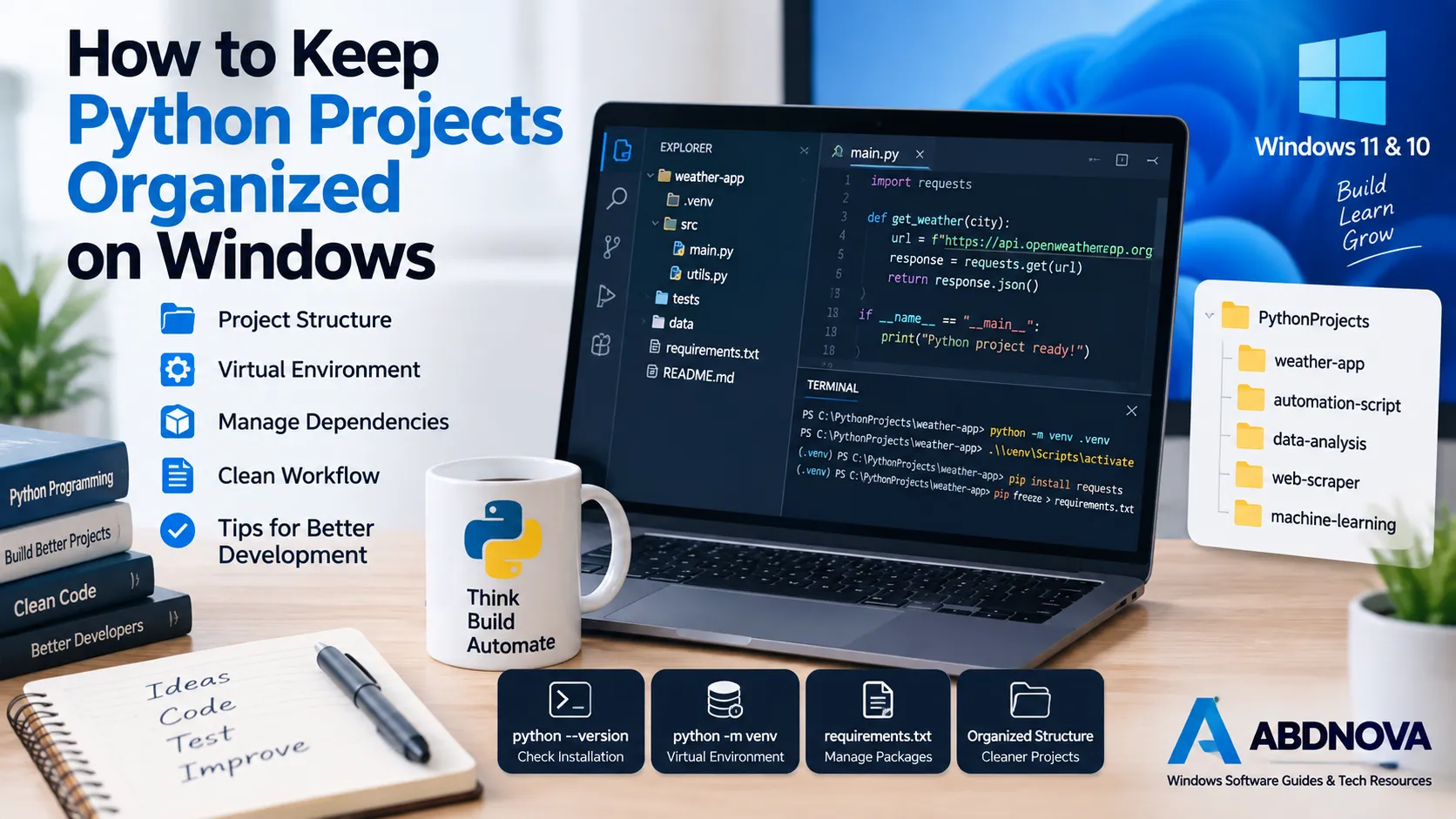
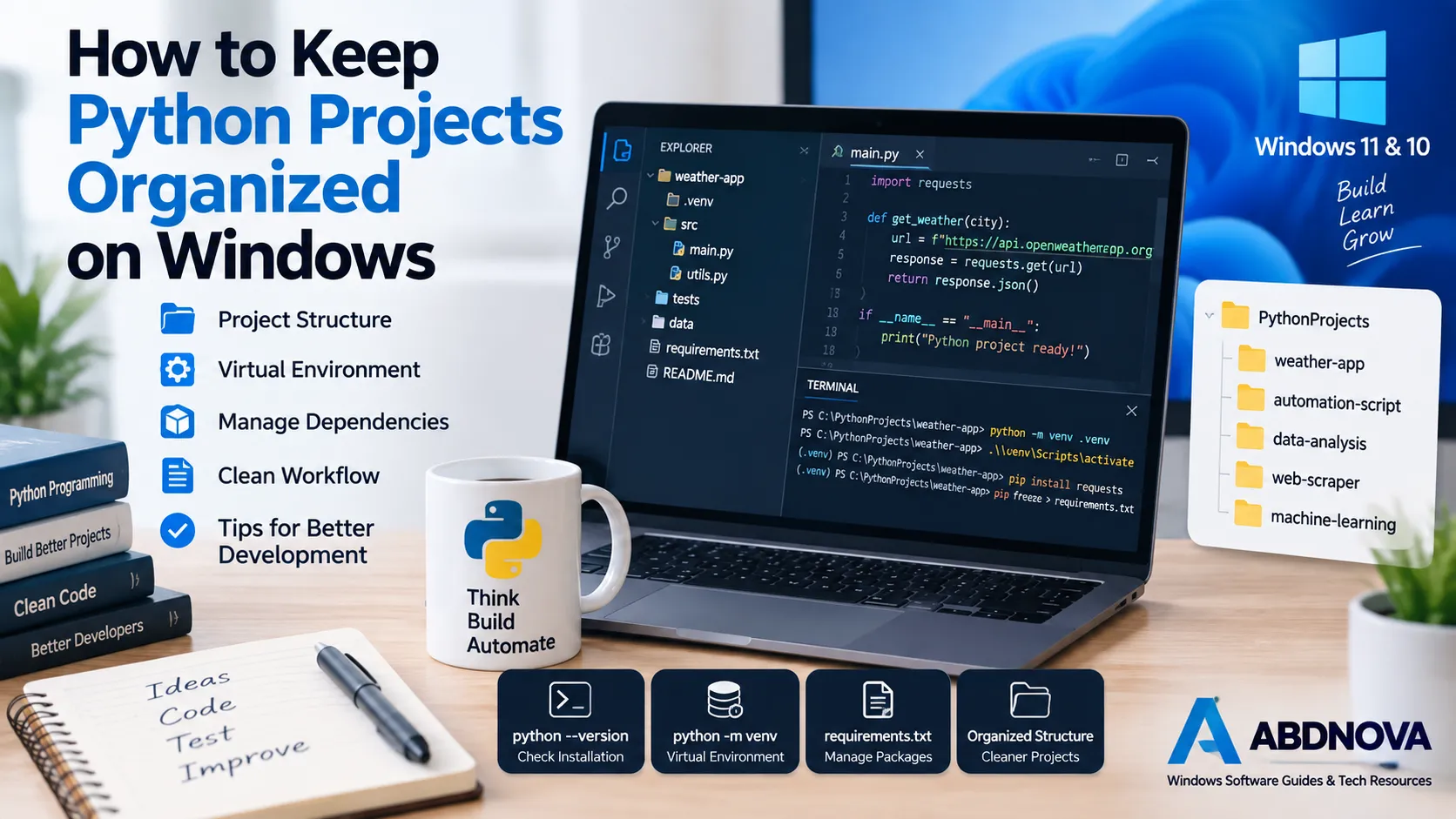
Keeping Python projects organized on Windows becomes increasingly important as you work with more scripts, packages, and dependencies. A clean setup makes projects easier to maintain and helps prevent common problems such as package conflicts, incorrect Python versions, and cluttered folders.
Start With a Separate Project Folder
Avoid keeping Python files randomly on the Desktop or Downloads folder. Create a dedicated location such as:
Documents\PythonProjects
Then give every project its own folder. For example:
PythonProjects\weather-appPythonProjects\automation-scriptPythonProjects\data-analysis
This simple structure makes it much easier to find files and manage projects later.
Check Python Before Starting
Open Command Prompt or PowerShell and run:
python --version
You can also check pip with:
pip --version
If Python is not installed correctly, or Windows cannot recognize the command, fix the installation and PATH configuration before creating projects. This Python setup guide for Windows explains the installation process, PATH setup, pip, and basic verification.
Use a Virtual Environment
One of the best habits for Python development is creating a separate virtual environment for each project.
Open a terminal inside your project folder and run:
python -m venv .venv
Activate it on Windows with:
.venv\Scripts\activate
Once activated, packages installed with pip stay associated with that project instead of affecting every Python project on your PC.
Keep Dependencies Organized
Install only the packages the project actually needs. You can save the current dependencies with:
pip freeze > requirements.txt
Later, the environment can be recreated using:
pip install -r requirements.txt
This is especially useful when moving a project to another computer or collaborating with other developers.
Use Clear File and Folder Names
As a project grows, avoid putting everything inside one Python file. A simple project might eventually contain:
main.pyrequirements.txtREADME.mdsrctestsdata
The exact structure depends on the project, but consistent naming makes navigation and troubleshooting easier.
Avoid Mixing Project Environments
A common beginner problem is installing packages globally and then wondering why another project behaves differently.
Before installing a package, check that the correct virtual environment is active. This small habit prevents many dependency problems.
Keep a README
Even for personal projects, a short README can record what the project does, how to run it, required packages, and any important setup instructions.
You may remember these details today, but they become surprisingly easy to forget after several months.
Final Thoughts
A good Python workflow on Windows does not need to be complicated. Separate project folders, virtual environments, organized dependencies, and clear documentation solve many common development problems before they happen.
Responses (0)
Join the conversation
Sign in to share your thoughts and talk with the author.
Sign in to respondNo responses yet. Be the first to share your thoughts!