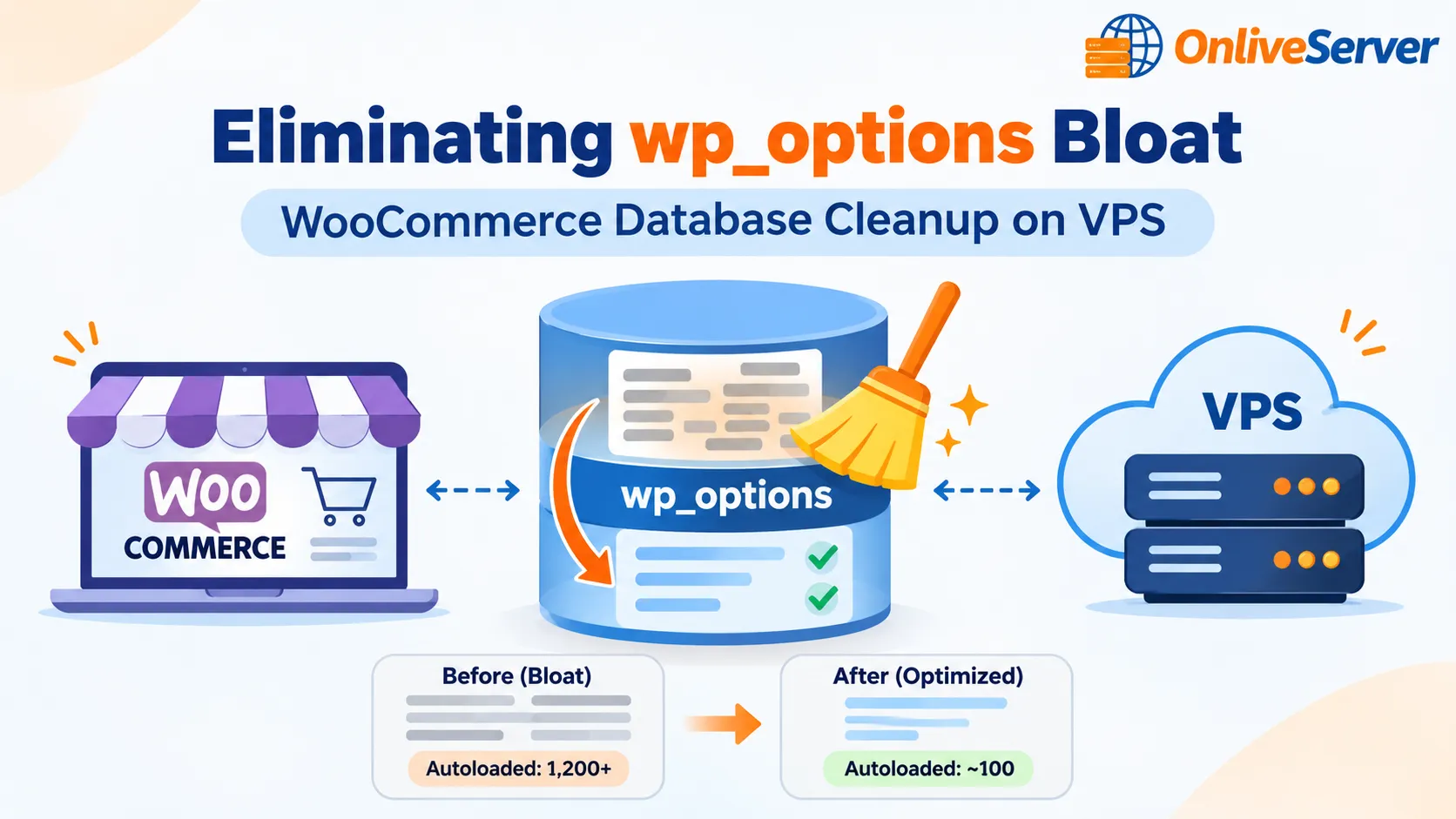

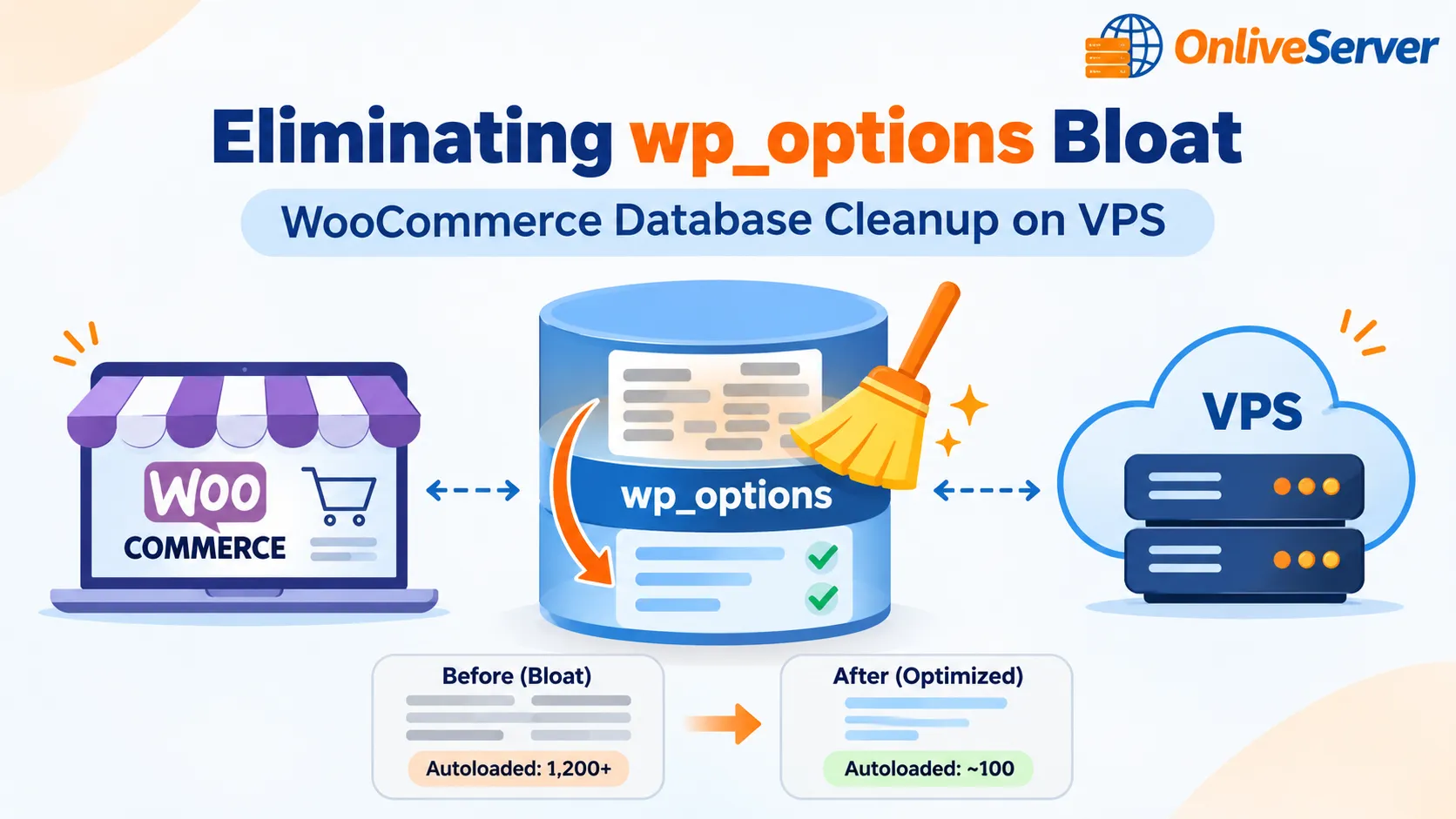
A WooCommerce store can become slow even when its VPS has sufficient RAM, CPU power, and fast SSD storage. The problem sometimes lies within the WordPress database, particularly the wp_options table.
WordPress uses this table to store website settings, plugin configurations, and other important information. Some records load automatically whenever WordPress initializes. When unnecessary data accumulates, these autoloaded options can consume additional PHP memory and affect website performance.
For developers managing online stores, WooCommerce database cleanup VPS optimization is an important part of server maintenance. Identifying unused settings, removing outdated records, and controlling autoloaded data can reduce unnecessary processing without immediately upgrading server hardware.
What Is the wp_options Table in WordPress?
The wp_options table is a core WordPress database table that stores configuration information required by the website.
It contains settings related to WordPress itself, installed themes, plugins, and various site features.
WooCommerce extensions also use this table to store certain configuration details. Payment settings, shipping preferences, and other plugin options may be stored here.
Some options are needed regularly, while others are accessed only during specific operations.
WordPress uses an autoload mechanism to make frequently required settings available without retrieving each option separately.
This improves efficiency when the amount of autoloaded data remains reasonable.
Problems appear when large or unnecessary records are marked for automatic loading. WordPress may then spend additional memory and processing resources handling information that is not relevant to the current request.
What Causes Autoloaded Options Bloat?
Autoloaded options bloat occurs when WordPress automatically loads an excessive amount of stored configuration data.
A WooCommerce store may use multiple plugins for payments, shipping, inventory, marketing, analytics, and customer communication.
Each plugin can add records to the database.
Over time, some extensions are removed or replaced, but their settings may remain inside wp_options.
If these records are still autoloaded, WordPress may continue loading unnecessary information.
Common causes include outdated plugin configurations, abandoned theme settings, oversized option values, and incorrectly managed temporary data.
Not every unused database record contributes to autoload bloat. Only records that WordPress actually autoloads affect this particular process.
That distinction matters when deciding what should be cleaned.
Why Autoloaded Options Affect WooCommerce VPS Performance
WooCommerce relies heavily on PHP processing for dynamic operations such as shopping carts, customer accounts, shipping calculations, and checkout.
When WordPress initializes, it loads autoloaded options into application memory.
If the autoloaded dataset becomes unnecessarily large, individual PHP requests may require more memory.
The effect becomes particularly important when several PHP workers handle requests simultaneously.
For example, an online store experiencing increased checkout activity may need many PHP workers to process customer requests.
If those workers consume excessive memory, the server can experience resource pressure.
This may contribute to slower responses, worker termination, or application errors when memory limits are reached.
However, autoloaded options are only one possible cause of high PHP memory consumption. Inefficient plugins, large database queries, and inadequate PHP-FPM configuration can create similar problems.
Developers should therefore measure actual resource usage before identifying autoload bloat as the main cause.
Why the 800KB Autoload Guideline Matters
WordPress recommends keeping autoloaded options below approximately 800KB as a general performance guideline.
WordPress Site Health also uses an 800,000-byte threshold by default when checking for potentially excessive autoloaded data.
This provides developers with a useful starting point for database auditing.
If a website exceeds this amount, reviewing its largest autoloaded records is sensible.
However, 800KB is not a strict safety limit.
A WooCommerce store with less than 800KB of autoloaded data may still experience memory problems because of inefficient plugins or insufficient server resources.
Similarly, exceeding the guideline does not automatically cause PHP-FPM crashes.
The actual impact depends on memory allocation, plugin behavior, caching, request concurrency, and the way PHP processes stored values.
Reducing unnecessary autoloaded data can lower memory overhead, but it cannot guarantee that every memory-related problem will disappear.
Common Sources of wp_options Database Bloat
1. Leftover Plugin Settings
Many WordPress plugins save configuration records that remain after the plugin is removed.
Developers may preserve these records intentionally to support future reinstallation.
Over several years, a WooCommerce store can accumulate settings from numerous unused extensions.
These abandoned records may contribute to autoloaded data growth.
2. Expired Transients
WordPress transients temporarily store information such as cached results or external service responses.
Expired transients may sometimes remain in the database until cleanup occurs.
Not all transients are autoloaded, so removing expired transients and reducing autoloaded options are related but separate maintenance activities.
3. Large Plugin Configuration Records
Some plugins store substantial amounts of information in individual database options.
If these options are autoloaded unnecessarily, they can increase PHP memory usage.
Large records associated with active plugins require careful investigation before any changes are made.
4. Outdated Theme Settings
Switching themes may leave old customization settings inside wp_options.
Some themes store extensive layout information and design preferences.
Unused records can remain long after the original theme has been replaced.
5. Marketing and Shipping Integrations
WooCommerce stores frequently use third-party plugins for courier services, promotional campaigns, analytics, and customer notifications.
These plugins can create numerous configuration records.
Stores using several marketing and shipping extensions may benefit from periodic reviews of their stored settings.
How to Clean Up the WooCommerce Database Safely
Step 1: Create a Complete Backup
Before modifying database records, create a complete backup of the WooCommerce website.
Include the database, website files, plugins, themes, and uploaded content.
Verify that the backup can be restored successfully.
A VPS snapshot can offer additional protection, but it should not replace a reliable database backup.
Step 2: Use a Staging Environment
Perform database cleanup on a staging copy before making production changes.
A staging website allows developers to examine unnecessary records without interrupting customer activity.
Disable live payment processing and outgoing customer notifications in staging to avoid accidental transactions or messages.
Step 3: Review Unused Plugins
Examine active and inactive extensions.
Identify plugins that are no longer required and check whether their developers provide an official uninstall procedure.
Removing unused plugins through supported methods is generally safer than deleting their database records manually.
Step 4: Clear Expired Transients
WooCommerce includes maintenance tools for cleaning certain temporary records.
Open WooCommerce, navigate to Status, and select Tools.
Find the option for clearing expired transients.
Removing expired temporary data can reduce database clutter.
Clearing valid caches unnecessarily may temporarily increase processing work while WordPress rebuilds them.
Step 5: Examine Large Autoloaded Records
Review unusually large autoloaded options and identify their source.
Determine whether each record belongs to an active plugin, an old theme, or an abandoned feature.
Some records should be deleted only after the related software has been removed.
Others may need their autoload behavior adjusted rather than being deleted.
Step 6: Test Store Functionality
After cleanup, test product pages, shopping carts, customer accounts, shipping calculations, and checkout.
Verify that payment integrations, inventory updates, and order processing continue working correctly.
If problems appear, restore the affected records or use the verified database backup.
Only apply tested changes to the production store.
How Database Cleanup Helps Reduce PHP-FPM Memory Usage
PHP-FPM manages the PHP processes responsible for dynamic WordPress requests.
Every PHP worker requires memory to execute application code and process information.
When WordPress loads unnecessary autoloaded options, those records can contribute to the memory footprint of PHP requests.
The amount of PHP memory required may differ from the database storage size because stored values must be represented as PHP data structures.
Reducing unnecessary autoloaded information can lower this overhead.
For WooCommerce stores handling multiple simultaneous checkout requests, controlling memory consumption is especially useful.
Nevertheless, developers should examine actual PHP worker memory usage and available server RAM before modifying PHP-FPM worker limits.
Database cleanup improves resource efficiency when autoloaded data is a meaningful contributor, but it does not replace proper server configuration.
When Should a WooCommerce Store Upgrade Its VPS?
A slow WooCommerce store does not always require more powerful hosting.
Before upgrading, developers should examine CPU usage, available RAM, PHP worker activity, database response times, and disk performance.
If unnecessary autoloaded options are contributing to high memory consumption, cleanup may improve efficiency without requiring additional hardware.
On the other hand, a store that consistently exhausts its available resources under legitimate traffic may require additional capacity.
A properly configured VPS offers greater control over database maintenance, PHP-FPM settings, and application caching.
Businesses preparing for increased traffic can consider deploying a scalable WooCommerce store on VPS after evaluating their actual workload.
Hosting decisions should be based on measured resource requirements rather than general visitor-count estimates.
Common Database Cleanup Mistakes to Avoid
Deleting unfamiliar entries is one of the most dangerous mistakes during WordPress maintenance.
Some database options support essential plugin functions even when their names appear unimportant.
Removing them can affect checkout, payment processing, shipping integrations, or other store features.
Another mistake is disabling autoloading for every option.
Frequently used settings benefit from automatic loading, and disabling them unnecessarily may increase individual database lookups.
Developers should also avoid repeatedly clearing valid caches without a clear reason.
Finally, database cleanup should be evaluated through real performance measurements rather than the amount of storage recovered alone.
Best Practices for Long-Term WooCommerce Database Maintenance
Regular maintenance helps prevent unnecessary database records from accumulating.
Review WordPress Site Health after major plugin updates or theme changes.
Monitor autoloaded data growth and investigate unusually large configuration records.
Remove unused plugins through supported uninstall procedures whenever possible.
Keep reliable database backups and document significant configuration changes.
For additional guidance, learn how to optimize a MySQL database on VPS.
Database maintenance should also include monitoring slow queries, checking available memory, and reviewing caching performance.
These activities help developers identify problems before they affect customers.
Frequently Asked Questions
What is autoloaded options bloat in WordPress?
Autoloaded options bloat occurs when WordPress automatically loads excessive configuration data, including unnecessary plugin settings and oversized records. This can increase PHP memory consumption and affect performance.
Is 800KB the maximum safe autoload size?
No. The approximately 800KB recommendation is a diagnostic guideline, not a strict memory limit. Actual performance depends on the website's configuration and server resources.
Can WooCommerce database cleanup improve checkout speed?
Yes, when unnecessary database data contributes to memory pressure or processing overhead. Improvements depend on the actual bottleneck affecting checkout performance.
Is removing unused wp_options records safe?
It can be safe when records are confirmed to be unnecessary. Always create a backup and test changes in staging before modifying a live WooCommerce database.
Does increasing VPS RAM solve database bloat?
Additional RAM may reduce memory pressure, but it does not remove unnecessary records. Database cleanup addresses the underlying data problem.
Conclusion
Autoloaded options bloat can gradually increase memory usage and create unnecessary processing overhead on WooCommerce servers.
Reviewing wp_options, removing abandoned plugin settings, clearing expired transients, and correcting inappropriate autoload behavior can help developers maintain a more efficient WordPress database.
For stores running on cloud VPS infrastructure, regular database audits are a practical way to use existing server resources more effectively.
The best results come from safe cleanup procedures, proper caching, realistic performance testing, and continued monitoring rather than relying on database cleanup as a solution to every hosting problem.
Responses (0)
Join the conversation
Sign in to share your thoughts and talk with the author.
Sign in to respondNo responses yet. Be the first to share your thoughts!